To follow along with this guide, please log into your account at https://app.spreedly.com/
Jump to:
Adding New Users
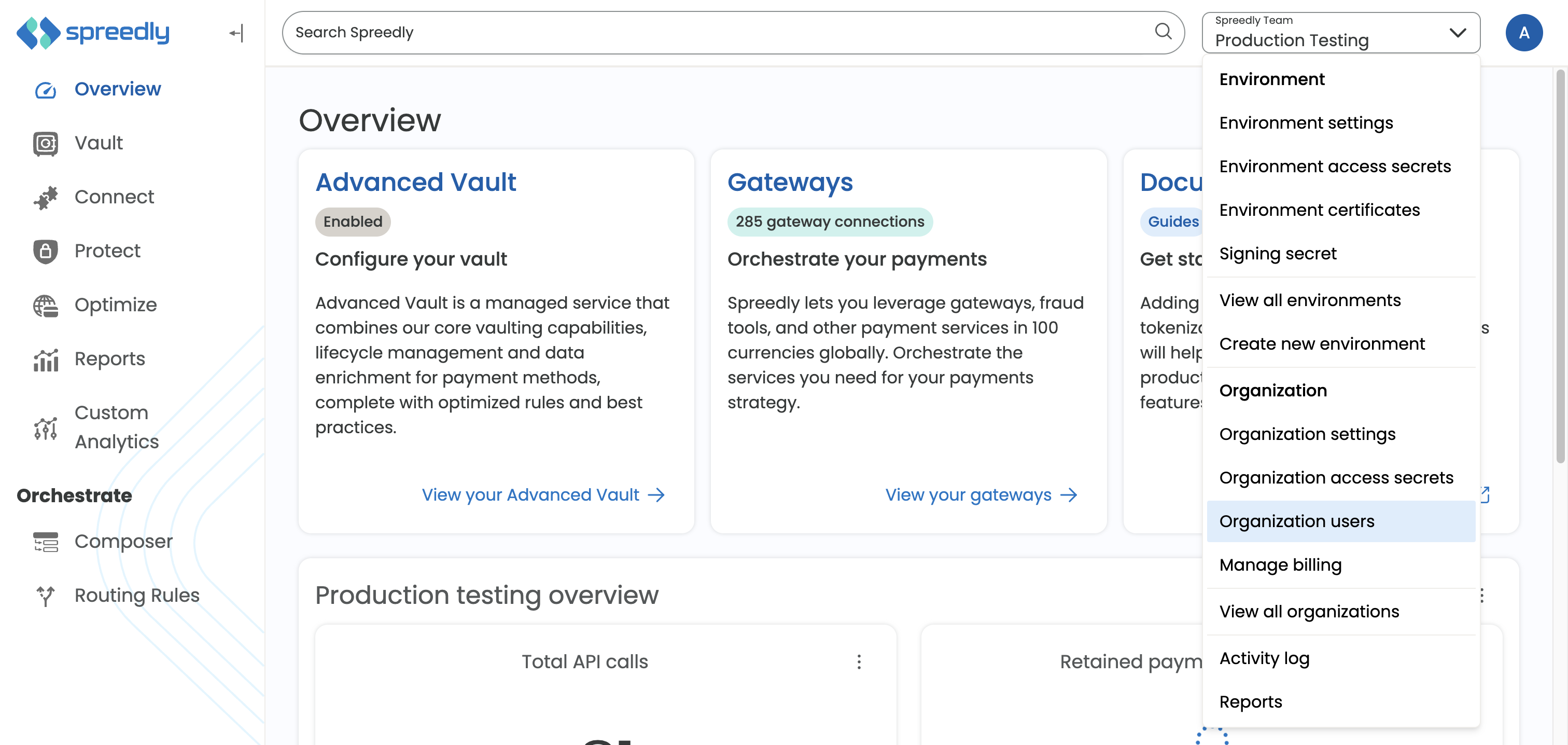
Spreedly users with administrator privileges can add new Spreedly users to an organization (only add trusted users to your organization). To view or manage users, select the Organization users option from the organization/environment menu on the top right of the app logging into your account and select the Add User.
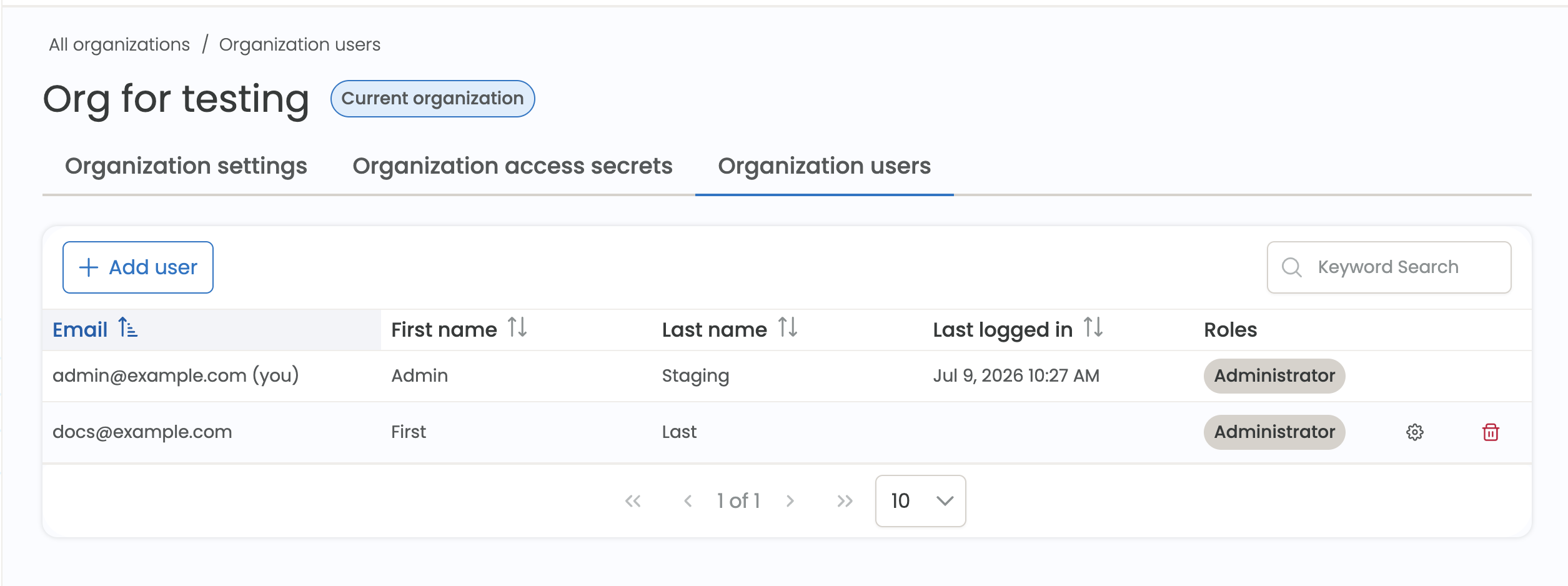
Users are presented in a tabular format with email, name, and selected roles. A timestamp of each user's last login is also available. This list will include all users that belong to the organization. User permissions apply to all environments within an organization.
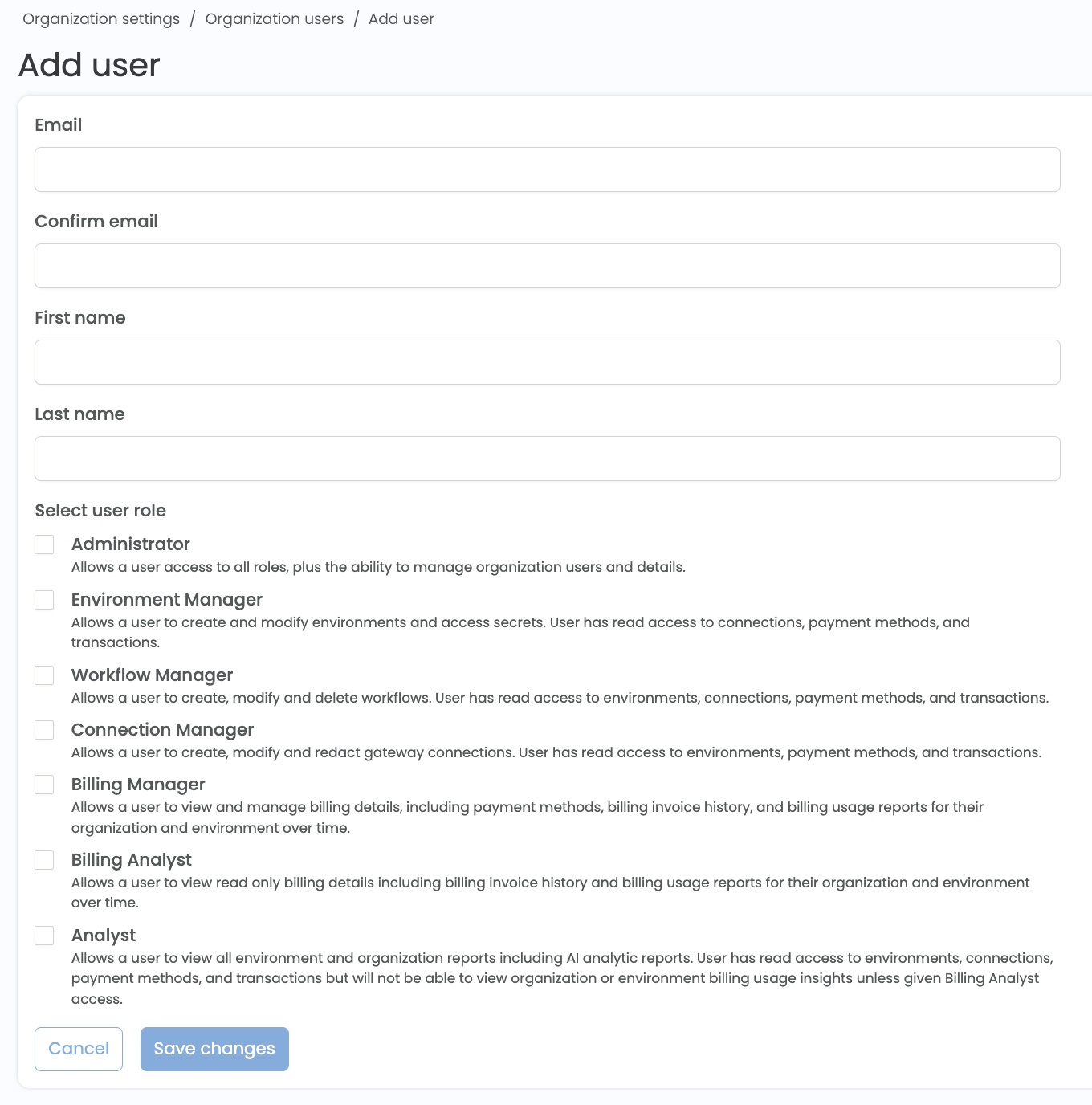
New users can be invited by any user within an organization with an Administrator role by selecting Add user, which will open a page where we require name, email, and at least one RBAC selection to confirm the invite. New users will receive an email with instructions to login.
View and edit users and roles
Users with the Administrator role can modify other users by selecting the gear icon in that user's row of the user list. This will open a page where RBAC selections can be updated, and missing names can be added. All users must have at least one role selected before they can be updated.
Users are not able to edit their own role permissions or remove their own user, only another user with the Administrator role can do this.
Controlling invitations
Newly added users will automatically receive two emails, to the email noted in the Add User fields. The first email acknowledges that they have been successfully added as a Spreedly ID user. No action is required however a link to Spreedly’s support team is conveniently listed in case you have any questions.
A second email contains a link to set up a new user’s password. Please click on this link and follow the instructions to enter your new password with a at least a minimum of 15 characters including numbers, special characters and upper and lower letters (phrases work best).
If you experience a problem, you may be presented with an invalid Link message. Please select the button to go back to the app.spreedly.com login screen.
Once you navigate back to the Spreedly login screen, select the Forgot Password link and re-enter your email address. You’ll receive another email with a new password set up link.
Depending on the user’s pre established user roles, the new user will have immediate access to configure, control and view Spreedly applications.
Removing Users
As an Administrator, if you need to remove a user from your account, you can do so from the Users tab.
- On the Users page, the Administrator will find a list of their current Spreedly ID users on the left and a list of their assigned roles on the right side of the screen. Controls to Remove or Modify a user’s role(s) are located below the current assigned role.
2. Simply select Remove and you will be prompted to approve the removal
Questions? We are happy to help!
For non-Spreedly customers, fill out our Contact Us form by clicking here. For active Spreedly customers, reach out to your Account Manager or email support@spreedly.com.